Movement in Manhattan Video

By: Jeff Clark    Date: Tue, 08 May 2012

In my last post about visualizing Movement in Manhattan I mentioned that it would be interesting to explore a more direct view of the data by using an animation. I have created such a video based on a fresh collection of tweets from Monday, April 30th. I gathered new data because I realized that my previous data set was collected over the weekend and I suspected that a weekday might provide more obvious patterns. It compresses 24 hours of data into 1 minute of video. Here it is:

I was influenced by the 'Fireflies' video showing iPhone traces done by Michael Kreil. In particular, I like the idea of using larger but more transparent graphics to represent the increased uncertainty when drawing interpolated locations. Basically, if a person tweets at location A and then again at location B ten minutes later the model I used assumes they moved at a constant speed in a straight line between those two events. This is an obviously crude approximation and leads to unrealistic paths in many cases. By increasing the transparency in between the two measured events it shows this uncertainty in a visual manner.

Again, as I saw in the original version, the patterns of tweets, both moving and static are quite chaotic. You can easily see the rise and fall of tweets over the changing time of day and some local patterns that look interesting but the patterns are still a bit of a jumble.

The geolocated tweets were collected with the library Twitter4J which was used from code written in Processing. I used this tutorial created by Jer Thorp to get started with the library. Code from this flow field sample by Daniel Shiffman was used as a starting point to create my flow maps. The background map is from OpenStreetMap. Thanks everyone!

Movement in Manhattan

By: Jeff Clark    Date: Wed, 18 Apr 2012

Inspired by the beautiful and elegant Interactive Wind Map created by Fernanda Viegas and Martin Wattenberg I have begun to explore the flow of people within a city. An ideal dataset to do this would include the GPS traces from thousands of people wearing trackers for weeks as they go about their daily lives. Organizations such as crowdflow.net and OpenPaths collect voluntarily donated data of this type and might be fruitful to explore. I decided, instead, to use geolocated tweets to try and see how the movement of people is affected by the urban landscape.

The image below shows an area of Manhattan roughly from Houston Street north to 72nd Street which corresponded to the region with the most geolocated tweets that I collected. It includes Times Square, Grand Central Station, the Empire State Building, Rockefeller Center, the southern portion of Central Park, and many other well known landmarks. The blue and red markings are an attempt to show the flow of people based on the data.

Basically, tweets sent by the same person within a 4 hour time-window were used as samples of speed and direction. These samples were used to construct a vector field representing the average flow of people within the area. The vector field and total tweet density over the space were then used to simulate the movement of people. Particles, representing people, were released at locations where actual tweets were recorded and their subsequent movement was determined by the flow field. The particles start out blue and gradually change through purple to red over time so each trace shows the direction of movement. Locations where there is little movement will have blue dots or very short blue traces. Longer traces with more red show a greater speed at that point.

The density and direction of the flow patterns seem reasonable but they do appear fairly chaotic - much more so than the patterns seen in wind flow for example. This makes sense for many reasons. One, people are much less deterministic than the molecules that make up the air. Secondly, the environment that they exist in is extremely complex. Also, statistically we are dealing with a much smaller sample size. In this case, roughly 34,000 geolocated tweets with only 9,600 path segments. If we had a million-times more data then the average patterns would be more clear. Another important factor is that this data was collected over a few days and so there may be clear patterns for specific times of day that are mixed together visually.

I have produced three more images that separate out the data by time of day. This first one only uses data from 6-11 am. It does appear to be a bit simpler and shows a few interesting patterns but it is still fairly chaotic. There is a strong flow east out from Central Park near 65th Street. There is also a more scattered flow from the east into New York University near the bottom left.

The afternoon flow map shows a greater overall density indicating a greater number of locations from which people are tweeting. There also appears to be a strong convergence on the area of 14th Street - 4th Avenue.

The evening map is also quite busy with lots of small local patterns. There is heavy action between 50th and 57th Streets. Comparing these three versions is easier with this Flickr lightbox version of the images.

Overall, there are lots of flows and some of them likely reflect real movement of people within Manhattan. Many others probably just reflect noisy data because the sample size is so small. It's difficult to distinguish between the two cases here. The technique itself might warrant further study with more data. Another interesting avenue to explore would be to more directly visualize the data with an animation like this 'Fireflies' video showing iPhone traces done by Michael Kreil.

The geolocated tweets were collected with the library Twitter4J which was used from code written in Processing. I used this tutorial created by Jer Thorp to get started with the library. Code from this flow field sample by Daniel Shiffman was used as a starting point to create my flow maps. The background map is from OpenStreetMap. Thanks everyone!

Datavis Subgroup Word Analysis

By: Jeff Clark    Date: Mon, 05 Mar 2012

This is Part 4 of a set of posts related to the analysis of the Data Visualization Field on Twitter. For context or more information you may want to read those other posts first. They are:

  1. The Data Visualization Field on Twitter
  2. Data Visualization Field Subgroups
  3. Datavis Blue-Red Connections

In the previous posts we have seen that there are two fairly cohesive subgroups of twitter accounts that emerged from our analysis of the original 1000 accounts. I've been calling them the 'blue' and the 'red'. They were determined by looking exclusively at the references to twitter IDs within the tweets that were sent.

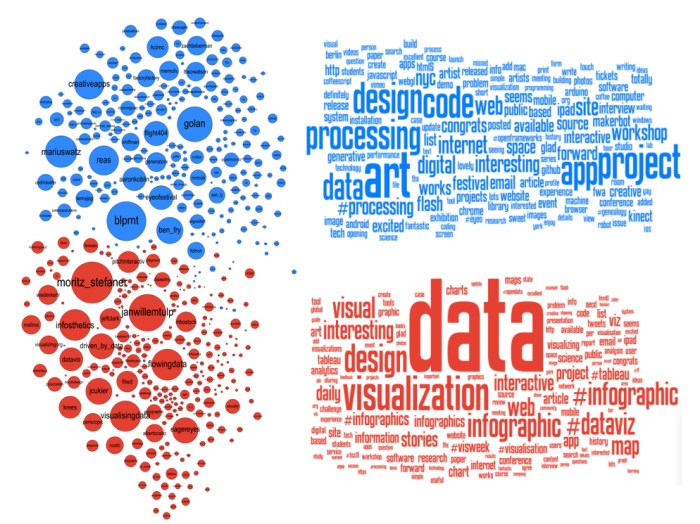
Presumably the fact that there are two fairly distinct groups would also be reflected in what they are discussing. I've done some analysis of the words used within the tweets for both groups. English stop words ('the' , 'and' , 'or', ... ) and other words commonly found in tweets ('new', 'via', 'like', 'day', ...) were excluded. Word clouds definitely have their limitations but I believe they can be an effective way to get a qualitative feel for a body of text. I have used Wordle to construct word clouds for the two groups.


It's clear that the blue group tweets a lot about 'art', 'code', 'design', 'processing', 'project', 'app' and 'workshop'. The red group tweets about 'data', 'visualization', 'design', 'infographic', and 'visual'. There is some overlap for sure but it's clear that they emphasize different things in what they are talking about.

Right from the very start I was calling the whole set of accounts the 'Data Visualization Field'. Of course, a more accurate description was that I was looking at the 'Set of Accounts on Twitter Connected Through Tweet Mentions from @moritz_stefaner, @datavis, @infosthetics, @wiederkehr, @FILWD, @janwillemtulp, @visualisingdata, @jcukier, @mccandelish, @flowingdata, @mslima, @blprnt, @pitchinteractiv, @bestiario140, @eagereyes, @feltron, @stamen, and @thewhyaxis'. It doesn't exactly roll off the tongue. From looking at these word clouds it appears that the red group could reasonably be named 'The Data Visualization Field' and the blue group something like 'Computational Artists and Designers'.

If we want to contrast these two groups more directly we can look for words that are used much more frequently in tweets of one group than the other. I've done this for words that met both an overall frequency threshold and an author support threshold - they were used by at least 10% of the group members. The bar charts show the frequency proportion. So, for example, in the large sample of tweets I looked at from both of the two groups if you count the number of times the word 'makerbot' was used then 99% of those instances were in tweets from people in the blue group.


This shows even more clearly the different things that these two groups emphasize.

Datavis Blue-Red Connections

By: Jeff Clark    Date: Fri, 02 Mar 2012

The recent post on Data Visualization Field Subgroups had an interesting reaction on Twitter that I didn't expect. Many people that were placed in the 'red group' by the community detection algorithm in Gephi joked about being part of the 'team' and being happy to represent it and be grouped together with the others. Jen Lowe lightheartedly suggested a scrimmage at #eyeo between the red and blue. There was much less reaction from the 'blue group', likely because I'm embedded within the reds myself and so they likely paid more attention to my posts and the subsequent reaction on twitter.

There does, indeed, seem to be two fairly cohesive groups of people here but I suspect there are very many connections between the groups as well. We can use some simple network analysis to get a feel for this. Here are a few statistics calculated on the blue and red groups only:

Characteristic Blue Red
Number of Nodes 216 244
Total In-Links 6734 5712
Total Out-links 6070 6376
Avg In-Links 31.18 23.41
Avg Out-Links 28.1 26.13
Total Intergroup links 665 1329
Total Intragroup links 5405 5047
Percent Intergroup links 10.96% 20.84%

Both groups are pretty similar in most respects. The primary difference is that blue group members have on average more incoming links and that the percentage of intergroup links going from someone in one group to someone in the other is roughly double for reds. Remember that a link from A to B means that A referenced B in a tweet through a reply, a retweet, or just mentioning them in some context. When considering just the links between these two groups the people in red are referring to the people in blue at twice the rate of the reverse.

If you look at the graph showing both groups together (edges not drawn) it's clear that some nodes, for example blprnt and pitchinteraciv, are on the border between the groups which suggests they likely have a fair number of cross-group connections.

By looking at the details of the connections and their strengths we can quantify the 'blueness' or 'redness' of any particular node. This indicates how embedded they are within their own group. We can also do this separately for both incoming and outgoing links but I'll keep it simple for now and show one value that reflects both types of links together. This first table shows the top blue accounts (by degree) sorted by how 'blue' they really are.

Degree Blueness %
134 99.03
166 98.5
147 98.39
136 97.51
149 96.78
148 96.38
191 93.69
231 92.76
232 90.46
276 88.57
249 87.18
149 86.99
181 85.62
123 84.42
126 84.18
135 77.7
207 73.75
187 73.19
309 66.23
132 54.73

You can see that feltron, blprnt, eyeofestival, and ben_fry are all tending towards the red which matches what we see in the network graphic where they are on the border. This table below shows how 'blue' the top twitter IDs are that were placed in the red group. Again we see that some accounts had significant linkages to the blue group.

Degree Blueness %
165 35.48
326 24.34
163 18.27
290 18.25
198 17.71
146 15.9
149 14.48
142 11.49
180 10.34
172 7.98
154 7.57
243 7.45
133 6.17
244 5.77
140 4.66
239 2.46
199 1.44
138 1.36
204 0.8
163 0.44

Data Visualization Field Subgroups

By: Jeff Clark    Date: Tue, 28 Feb 2012

There was some interesting discussion yesterday on Twitter about my post on the Data Visualization Field on Twitter. Moritz Stefaner pointed out that he didn't see a big improvement over his VIZoSPHERE and a quite similar topology. Furthermore, he noted that if you rotate my version 90 degrees counter-clockwise many of the primary nodes line up fairly closely with his. He's right, and it's something I missed noticing completely. It's not really surprising that an analysis of most of the same twitter accounts using a different connectedness metric would yield similar results. I do still feel the map based on tweet text account references is slightly better at the detailed local level but I have no objective evidence that this is the case.

Another interesting thing I learned yesterday was that Lynn Cherny did an excellent analysis of Moritz's data back in September which is reported in Combing Through the Infovis Twitter Network Hairball. She focused on the detection of sub-communities within the network using both Gephi and NetworkX and has some nice results.

Following Lynn's lead I have spent some time looking at the communities within my data. Doing this analysis with Gephi yields subgroups that look like this:

The modularity score was .356 which is slightly under the .4 boundary for significance. By visual inspection of the image above it seems clear that there are two coherent groups to the left and four other groups that are intermixed and less clearly defined. These two coherent groups correspond pretty well to what I saw by eye yesterday. The top-left blue group has people who focus on computational design, generative art, or design in general. The bottom-left red group, as I noted yesterday, seem focused more on the practical aspects of data visualization.

Below is a map showing only the blue group. I've also shown the top 3% of edges as well. I wasn't able to emphasize the flows as much as I would have liked but you can see some of the stronger edges and their direction. One of the strongest relationships visible in this map goes from @eyeofestival to @blprnt which indicates that a relatively high fraction of the tweets sent by @eyeofestival mention @blprnt.

Here is the map for the red group below. Note that you can click on any of these images to get PDF versions where you can zoom in or search for a particular account.


Data Visualization Field on Twitter

By: Jeff Clark    Date: Sun, 26 Feb 2012

I consider myself one small part of a community on Twitter that focuses on information visualization, computational design, and interaction design. Collectively we tweet about our personal work, highlight other work of quality or that has interesting characteristics, critique approaches or individual designs, discuss tools and techniques, and suggest interesting datasets or projects. I'm grateful to be connected with such an interesting group of people and I've learned a great deal from them.

Moritz Stefaner is an important part of this group and in July 2011 he created an interesting map of this community he calls The VIZoSPHERE. Basically, he started from a set of 18 selected twitter accounts, found their friends and followers and included any twitter account that met a minimum criterion of connectedness. A small version of part of this map is below. Node sizes reflect the number of followers within this community.

It's a fairly standard graph view of the network data and the sheer number of connections makes them extremely difficult to traverse. Like many such large network graphs the primary utility seems to come from seeing which nodes are largest and seeing which ones seem to be grouped together, presumably reflecting nodes that have a similar set of connections to the rest of the network or strong connections between them. This can sometimes visually suggest sub-groups within the overall community.

After stumbling across this work recently I decided to explore the same problem myself. Rather than rely on follower information for connectedness I decided to analyze the actual tweets sent and look for mentions of twitter IDs. These could be retweets, replies, or just references to someone in a tweet. For a given twitter account we are essentially looking at who they talk to or talk about. Unlike the binary nature of the follower connections we can also measure the strength of this connection by looking at how often one person mentions another.

I started with the same set of accounts that Moritz used: @moritz_stefaner, @datavis, @infosthetics, @wiederkehr, @FILWD, @janwillemtulp, @visualisingdata, @jcukier, @mccandelish, @flowingdata, @mslima, @blprnt, @pitchinteractiv, @bestiario140, @eagereyes, @feltron, @stamen, and @thewhyaxis. I looked at the 1000 latest tweets (or as many as they had if they hadn't sent 1000) and found all the twitter accounts they mention. For each mentioned account I calculated its' support - the number of accounts in the original 18 that mentioned it and used that ranked list to enlarge my set to 50. The latest 1000 tweets for this larger set were retrieved and analyzed in the same way to enlarge the community to 100. I repeated this once more and used tweets from these 100 accounts to finally get a list of the top 1000.

The total number of tweets analyzed for these 1000 accounts was 821,407 and I used them to determine a directed connection strength between each pair of accounts. This connection data was loaded into Gephi which I used to produce the graph below.


For a searchable and zoomable version use the PDF.

As in Moritz's VIZoSPHERE there were so many connections that I didn't think they provided any useful information that could be seen with the eye so I left them out. They are used to layout the nodes for each account and also the node sizes are determined by the degree - the number of edges coming into or out of the node. The bigger nodes can be read off from this graph - @blprnt, @moritz_stefaner, @flowingdata, @visualizingdata, @janwillemtulp, @infosthetics, @golan, @mariuswatz, @reas, @ben_fry, @brainpicker, @nytimes, @timoreilly. Many of these larger nodes are, unsurprisingly, the original seed accounts we started with.

Looking at the details of which accounts are placed near each other seems to give reasonable results. @Eyeofestival is near @blprnt, @krees near @periscopic, and @mccandelish near @infobeautiful. It's very likely that many nodes are placed near each other based on more global or indirect factors so there are still likely some surprising juxtapositions.

Many of the initial seed accounts are in the lower left part of the diagram and seem to reflect a subgroup focused more on the practical aspects of data visualization. The top left accounts seem more to be in the area of computational design, generative art, or design in general. @Blprnt seems to lie between these 2 subgroups. The right side of the diagram seems to be more general media and data sources. I suspect that many of the accounts on the left side mention those on the right but the reverse is not true. In fact, I suspect that many of the accounts on the right side aren't really part of the community in that they don't strongly interact with it. They are sources but not contributors. It would be interesting to repeat my enlargement process from the original seed accounts with some minimum criterion for two-way interaction.

The nodes are colored based on the total number of incoming links which represent people in this community mentioning that account. The darker the color the more incoming links there are. So there are a lot of different people within this community referring to @blprnt, @flowingdata, @brainpicker and @nytimes for example. You can't extract much quantitative detail from a color range but it does give you a feel for which accounts are highly referenced. Note that the color is based on the absolute number of incoming links - not the proportion of incoming to total links. That would be a more interesting measure but I couldn't easily map it to color with Gephi.

This looks like an interesting view of the data and I'm curious to explore a few related variations. Note that prominence within this graphic is a fairly crude measure of overall contribution to the field of data visualization. Many key figures in the field, Stephen Few for example, don't use twitter and so aren't represented here even though his critiques have a huge impact and are discussed within the twittersphere. Many others, such as Ben Shneiderman (@benbendc) and Edward Tufte (@edwardtufte), do use twitter but not extensively and not to a level that reflects their value to the field. They do appear in this map but have very small bubbles.

Einstein Word Portraits

By: Jeff Clark    Date: Thu, 16 Feb 2012

I have created many word portraits in the past and have always limited myself for the sake of simplicity to completely horizontal or vertical words. My interest in word portraits has been re-ignited by a recent client project and I've started to play with allowing angled text.

In this first example below the words are flat when near the horizontal middle and gradually turn to vertical at the edges. I also swap the orientation below the vertical middle.

In the next example the angle of the word is determined by the brightness level at that point in the image. White regions are flat and dark are vertical. This gives a reasonable contoured effect because the brightness levels in the image vary in a natural fashion.

For this last one the words are all angled towards a point on one of Einstein's eyes.

Spot

By: Jeff Clark    Date: Thu, 12 Jan 2012

This post was modified on February 15th, 2012 to reflect changes in the software.

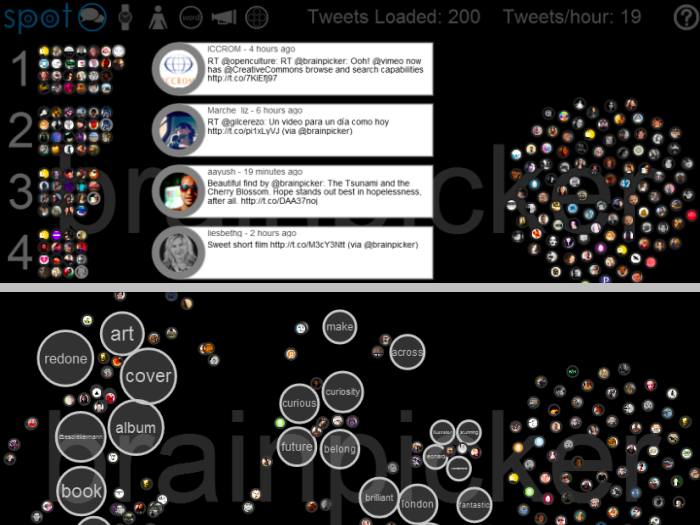
Spot is an interactive real-time Twitter visualization that uses a particle metaphor to represent tweets. The tweet particles are called spots and get organized in various configurations to illustrate information about the topic of interest.

Spot has an entry field at the lower-left corner where you can type any valid Twitter search query. The latest 200 tweets will be gathered and used for the visualization. Note that Twitter search results only go back about a week so a search for a rare topic may only return a few. When you enter a query the URL is changed so you can easily bookmark it or send it to someone. The query brainpicker gives you a display something like this:

At the top left, next to the logo, are six icons to access the different views. The first is called Banner mode and is shown above. Basically, tweets that share a lot of the same words are grouped together and the top five groups are shown. Tweets are often grouped because they are retweets of the same original content but this doesn't have to be the case. They may be tweets from different people that don't even know each other but happen to be discussing the same thing. The intent is to show quickly the most popular things people are saying about a particular topic. Tweets that are more unique are placed in the phyllotaxy spiral to the right.

All the tweet spots show an image of the sender and at any time can be clicked on to see the tweet details. Clicking on the text of an open tweet will show the original in another browser window. Click on the background or an open tweet spot to close it or you can directly click on another spot.

The Different Views

Here is a complete list of the views and what they show:

  1. Banner View (speech icon) shows the top five groups of similar tweets

  2. Timeline View (watch icon) places tweets along a timeline based on when they were sent

  3. User View (person icon) shows a bar chart with the people sending the most tweets in the set

  4. Word View (Word Circle icon) directly shows word bubbles with tweets attracted to the words they contain

  5. Source View (Megaphone icon) a bar chart showing the tool used to send the tweets (or sometimes the news source)

  6. Group View (circles in circle icon) places tweets that share common words inside large circles

The Word View, again for the query brainpicker:


User and Twitter List Queries

The string 'brainpicker' matches the wonderful twitter account by Maria Popova and the results shown above are mainly retweets of or discussions about the tweets she has sent. You can also do a search for @brainpicker including the @ sign to see the latest tweets sent from that account. This uses the standard Twitter API to get the data and so can go back farther in time. The Word View for this query clearly shows the Brainpicker focus on books, reading, writing, art, and maps.

You can also retrieve the latest tweets from a twitter list. Here is an example for a list I created by analyzing who was on various lists created about data visualization. In the search field enter @Top100in/datavis and you should get something like this for the User View:


Technology and Credits

I was inspired to create this when playing with the wonderful Twitter visualization called Revisit by Moritz Stefaner. Another influence was the Stamen work on Digg swarm which is no longer active but there is a video. My academic background in physics makes it natural for me to think in terms of interacting particles.

This application was created with the wonderful Processing.js which is the javascript-based extension of the Processing tool I have used in the past. Thanks to Ben Fry, Casey Reas, John Resig, David Humphrey and the other people in the Centre for Development of Open Technology at Seneca College. Thanks also to Jim Bumgardner for the excellent tutorial on phyllotaxy spirals and to The Noun Project for five of the icons. Thanks also of course to Twitter and all the people who fill it with great content!

Performance is pretty good with the Chrome browser, and decent in Firefox and Safari. It will not work in Internet Explorer (except perhaps the new IE 9). It seems to work reasonably well on the newer iPads although the search field is broken currently in that environment. The application will go out and get new tweets periodically. For popular queries the analysis and display of those tweets will often cause lagging to occur.

Obama Mosaic Portrait

By: Jeff Clark    Date: Wed, 30 Nov 2011

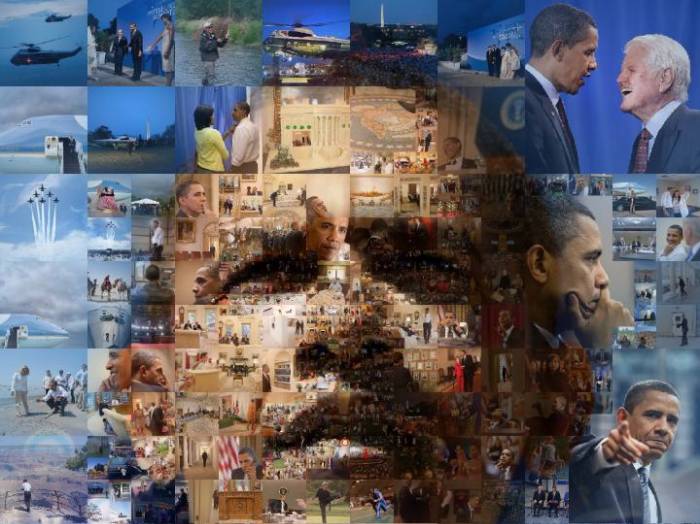
Here is a Multiscale Mosaic of Obama created from hundreds of pictures taken during his time in office.

The Van Gogh Portrait Mosaics were fun but I wanted to try an example that uses photographs as opposed to paintings. I settled on a portrait of Obama because of the widespread availability of photographs of him that are free of copyright restrictions. The subimages for this design are taken from the White House's Flickr photostream and seem to have been primarily taken by Pete Souza. I downloaded the 1000 most 'interesting' photos from the stream and used those as input to my process. I also manually selected and hand-centered about 10 interesting regions from these images to augment the set.

Here is a close-up showing the detail near the eye and nose.

Van Gogh Mosaic Portraits

By: Jeff Clark    Date: Wed, 23 Nov 2011

Here are four mosaic portraits of Vincent Van Gogh. The primary images and all the various component tiles are regions of paintings by Van Gogh.


A few more details on the multiscale mosaic process can be found in the post Multiscale Mosaics. The portrait images are all from WikiMedia Commons. The other Van Gogh paintings came from here. I created these by writing custom code in Processing.

Multiscale Mosaics

By: Jeff Clark    Date: Tue, 22 Nov 2011

I have been further refining my multiscale mosaic technique in search of the overriding goal of reconstructing an image from sub-images in such a way that balances the clarity of the large target image and the sub-images. I have tried out lots of ideas and the ones that seem to have the most potential for creating interesting multiscale mosaics are:

  • Allow use of lightened and darkened versions of the sub-images
  • Allow manual adjustment of the detail level (size of sub-images used) in different regions of the image
  • When matching sub-images to regions consider how often each sub-image has already been used in order to increase the number of different sub-images used in the final product
  • Do some limited blending of the target image with the sub-images

I have used a cropped region of Vincent Van Gogh's painting Self-Portrait With Grey Felt Hat as my target image while developing these ideas. The sub-images are sections of Van Gogh paintings. They are either the central squares or a few are manually selected square regions that focus on some interesting detail.

These techniques do seem capable of producing interesting mosaic images that can carry meaning at multiple visual scales.

Phyllotaxy Spiral Mosaics

By: Jeff Clark    Date: Tue, 15 Nov 2011

The post Mona Mosaics showed a number of ways to segment a flat surface and build mosaics by filling regions with the average colour for that region in some underlying image. Here is another example of the same technique but this time using a Phyllotaxy spiral, sometimes called a Fibonacci spiral. It's an arrangement commonly found in plant growth - for example in the Sunflower.

Jim Bumgardner has an excellent tutorial where he develops the idea and gives code for producing the pattern and several variations. I'm using something based on his Example 10 code to produce the mosaic below from a simple radial gradient. I love the swirling spirals in opposite directions found in the pattern.

And of course we must apply it to the Mona Lisa image as well.

Mona Pizza

By: Jeff Clark    Date: Thu, 10 Nov 2011

In the previous posts Mona Mosaics, Recursive Mona, and Blended Mona I played around with some ideas for reconstructing the famous Mona Lisa image in different ways. One of the things I did was to build up the image from smaller versions of itself. I was using simple image tinting and blending to get reasonable results.

This time I'm going to select sub-images from a set of pictures and use those to build the large image. This has been done for many years now and there are various tools to support it but I thought it would be interesting to try it myself. For this test rendering I'm using a small set of 23 images related to pizza. For simplicity they are all square images so they map well to the square regions determined by my algorithm. The algorithm selects the best-matching sub-image for each region and if the match isn't very good then it sub-divides the region and tries again at a smaller scale. This version uses blending to try and balance clarity of both the sub-images and the global picture.

Mona Pizza

For purposes of comparison here is the same image with no blending applied. You can see the sub-images more clearly but the overall image is only vaguely defined. This could be improved by using smaller sub-image pixels or a larger collection of sub-images to choose from.

Blended Mona

By: Jeff Clark    Date: Wed, 09 Nov 2011

The previous post, Recursive Mona, showed an image of the Mona Lisa constructed from smaller versions of itself. One of the things I don't like about that image, and most other 'photographic mosaic' type images, is that the grid structure controlling the sub-images is so visually prominent. Using multiple scales as I did helps to some degree but the regularity detracts from the overall image.

I've tried to improve this by breaking down the squares that require a more detailed rendering into subsquares in a more varied fashion. There are now 5 or 6 different splitting algorithms used to get the sub-components. This reduces the number of places where you see large numbers of consecutive tiles with the same geometry.

Another technique I've tried out is to blend the sub-images into the overall image at their edges. This tends to smooth out the edges between adjacent sub-images so it looks more natural and also has the impact of strengthening the overal global image. Here is Mona again with both of these techniques applied.

Recursive Mona

By: Jeff Clark    Date: Mon, 07 Nov 2011

One of the ideas presented in Mona Mosaics was to break down an image into square areas at different scales where the colour doesn't vary much. A natural extension of this is to redraw a tinted version of the original image inside each square. Repeat a few times and you get a version of the starting image built recursively from smaller and smaller versions of itself. Here is an example of the concept applied again to the Mona Lisa.

Iconic Faces

By: Jeff Clark    Date: Mon, 07 Nov 2011

Here are a few iconic faces that I have reconstructed with triangles. Source images came from 100+ Portraits of Iconic People of All Time. The faces are Che Guevara, Salvador Dali, and Audrey Hepburn.


Mona Mosaics

By: Jeff Clark    Date: Sat, 05 Nov 2011

A couple of years ago I explored reconstructing images based on Delaunay triangulization and Voronoi decomposition. Inspired by the work of Jonathan Puckey and Andy Gilmore I've revisited the idea of rebuilding images using some geometric-based simplification.

The source image for all these example is the Mona Lisa. The first rendering is a simple square grid where the colour of each square is the average colour in that region of the underlying image. By using a smaller grid size one can obviously get more detail than is shown here.

The image beside it is much more interesting. I start by looking at large square regions to see how much the colour varies. If it is fairly consistent then that implies there is less detail in that region and I can draw it as a simple large square. If the colour variation is higher than some threshold I look at the smaller subsquares and repeat the process recursively until some lower size is reached. This gives us a version of the image that has smaller more detailed squares where the image varies a lot and larger blocks of colour elsewhere.

Images 3 and 4 are similar but use triangular regions rather than squares. Another wrinkle which I added to the recursive process is to define a location on the base image that shows the 'center of attention'. I then vary the colour consistency threshold based on distance from that point. This allows for manually defining, to a limited degree, where the regenerated image will be more detailed. For these examples I used a point in the middle of the Mona Lisa's face.

The next 2 versions use circular regions which don't filll all the space so a background colour shows through.

These 2 fill the background of each circle with the average colour of that region and this gives a much more pleasing result.

This last image uses a recursive triangle decomposition as well but the sub-triangles are defined in a more varied fashion.

Sparklines for MLS Season

By: Jeff Clark    Date: Tue, 25 Oct 2011

Edward Tufte defines Sparklines as intense, simple, word-sized graphics, that should also be high-resolution. They are a very useful technique, especially when combined with the idea of small multiples.

I generated the example below based on the results of the 2011 Major League Soccer regular season. In this case, a whisker-style sparkline was generated for each team to show the complete Win-Loss-Tie sequence for the season. A small upward blue bar shows a win, a grey bar in the middle a tie, and a downward red bar is, of course, a loss.

The graphic succinctly illustrates how each team did over the season. A few interesting tidbits:

  • Los Angeles was consistently strong over the entire season
  • Real Salt Lake ended the season poorly with 4 losses then 2 ties
  • Sporting KC had a horrible start going 1-6-1 but then recovered well
  • DC United had no wins in their last 6 games
  • Vancouver had many more ties in the first half of the season than the second half

Radial Scans

By: Jeff Clark    Date: Fri, 21 Oct 2011

Here are a couple of portraits done with a simple radial scan technique. Arc segments are drawn that are coloured by sampling an image source.

Top Ten Cars in the UK

By: Jeff Clark    Date: Mon, 30 May 2011

I created some print graphics for Live Magazine back in February. I enjoyed the project a great deal and would be very happy to tackle more print projects. Send me an email at web1@neoformix.com if you are interested.

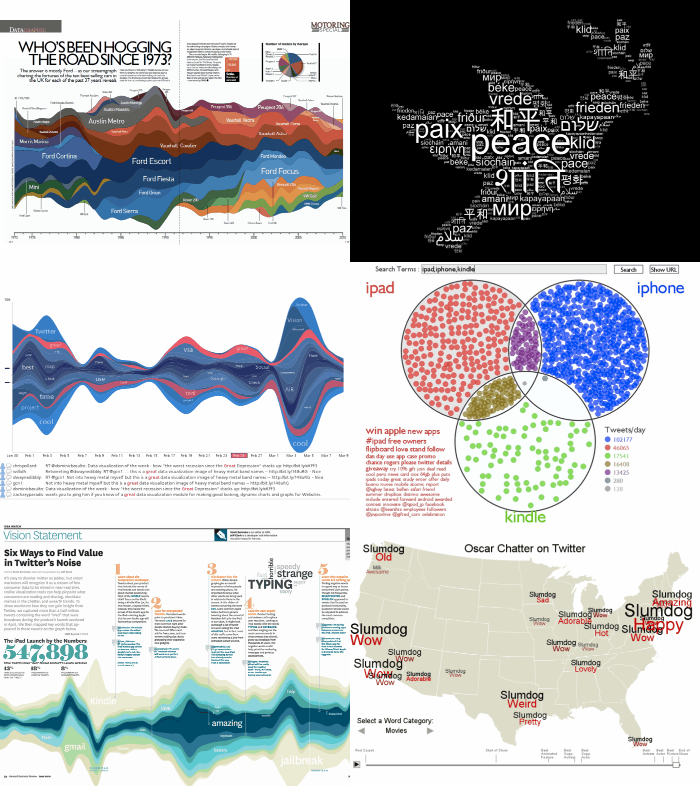
The graphic shows a streamgraph illustrating the top selling automobiles in the UK from 1973 until 2010. The various series were sorted to group the same brands together as much as possible and to add the newer brands to the outside of the graph.

Click on the image to see a larger version

I used custom code created with Processing to create vector output in PDF format and then fine-tuned the graphics with Adobe Illustrator.

Older Posts...